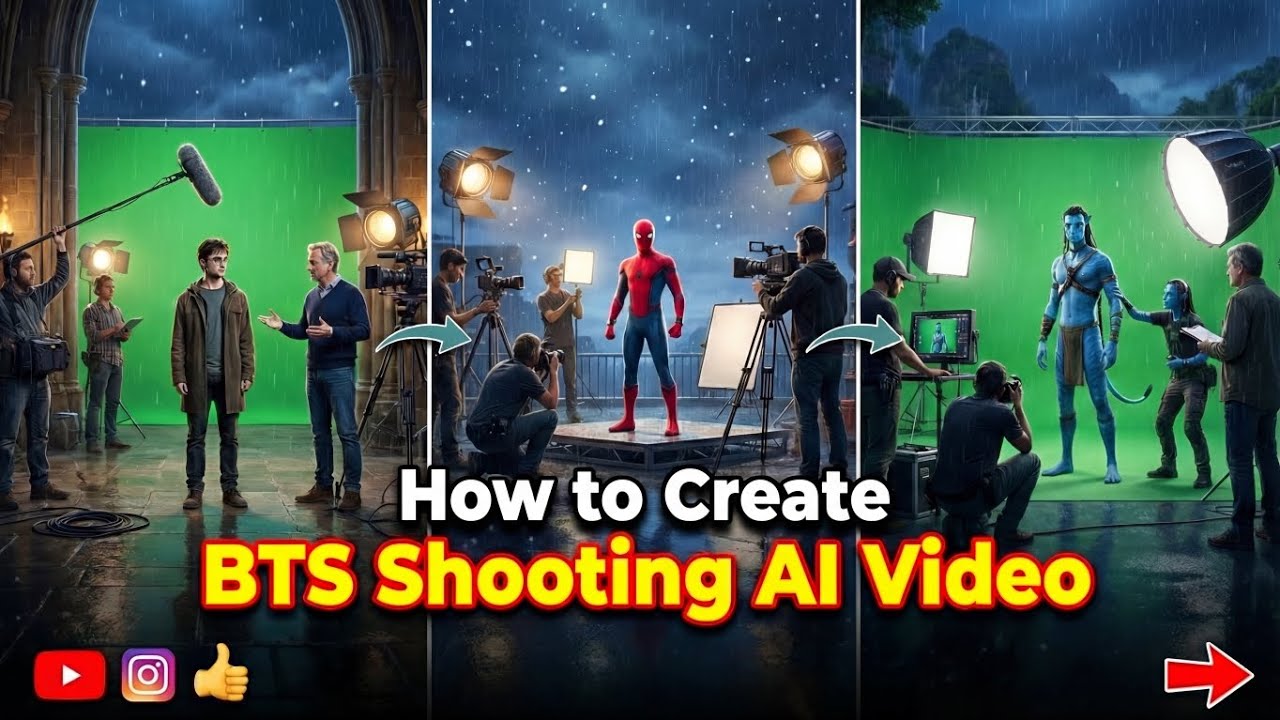
Artificial Intelligence has completely changed the way content creators produce videos. Today, you no longer need a professional film crew, expensive cameras, or a large production budget to create cinematic content. With the help of modern AI tools, anyone can generate realistic Behind the Scenes (BTS) shoot videos that look as though they were filmed on a real movie set.
These AI BTS videos have become one of the fastest-growing trends on platforms like TikTok, Instagram Reels, YouTube Shorts, and Facebook. Many creators use them to showcase fictional film productions, fashion shoots, music videos, product advertisements, and cinematic storytelling.
The biggest advantage of AI-generated BTS videos is that they combine creativity with automation. Instead of organizing actors, lighting crews, cameras, and production teams, you simply describe your idea using text prompts, and AI generates impressive visuals within minutes.
Whether you’re a beginner or an experienced content creator, this guide will teach you how to create realistic AI BTS shoot videos from start to finish.
What Are AI BTS Shoot Videos?
BTS stands for Behind the Scenes. Traditionally, behind-the-scenes videos show everything that happens during a professional photo shoot or video production. They include:
- Camera operators filming scenes
- Directors giving instructions
- Makeup artists preparing actors
- Lighting technicians adjusting equipment
- Cinematographers setting camera angles
- Production assistants working on set
- Actors rehearsing scenes
- Equipment such as cranes, drones, monitors, and studio lights
With AI, all of these elements can now be generated digitally without hiring a production crew.
Instead of recording a real studio, AI creates an entirely virtual production environment that looks realistic enough to fool many viewers.
Why AI BTS Videos Are Becoming So Popular
AI-generated videos have exploded in popularity because audiences enjoy seeing cinematic content that appears expensive and professionally produced.
There are several reasons why AI BTS videos consistently receive high engagement.
1. They Look Professional
Modern AI models create highly detailed environments with realistic lighting, reflections, facial expressions, and camera movements.
Viewers often assume these videos were filmed using expensive cinema cameras.
2. They Save Time
A traditional behind-the-scenes production may take several days to organize.
With AI, creators can generate multiple scenes within minutes.
3. Low Production Cost
Hiring a professional crew can cost hundreds or even thousands of dollars.
AI tools dramatically reduce production costs while maintaining high visual quality.
4. Unlimited Creativity
Since AI isn’t limited by physical locations or equipment, creators can imagine scenes that would normally be impossible to film.
For example:
- Hollywood movie sets
- Luxury fashion studios
- Futuristic filming locations
- Space stations
- Medieval castles
- Cyberpunk cities
- Underwater studios
- Fantasy kingdoms
Everything is possible with the right prompt.
Who Can Create AI BTS Videos?
One of the best things about AI is that anyone can use it.
You don’t need years of editing experience.
AI BTS videos are perfect for:
- YouTubers
- TikTok creators
- Instagram influencers
- Digital marketers
- Filmmakers
- Photography studios
- Fashion brands
- Advertising agencies
- Social media managers
- Students
- Freelancers
- Small businesses
Even beginners can produce professional-looking content by following the right workflow.
What You’ll Need Before You Start
Before creating your first AI BTS video, prepare the following:
A Clear Video Idea
Decide exactly what type of production your BTS video will show.
Examples include:
- Fashion photoshoot
- Music video production
- Movie set
- Product commercial
- Luxury brand campaign
- Celebrity interview
- Travel documentary
- Sports advertisement
- Wedding shoot
- Car commercial
Having a clear concept makes prompt writing much easier.
AI Image Generator
Most creators start by generating realistic still images.
These images later become animated videos.
A good AI image generator should produce:
- High-resolution images
- Realistic people
- Consistent lighting
- Accurate camera equipment
- Cinematic compositions
- Natural facial expressions
AI Video Generator
After creating your images, you’ll need an AI video tool to animate them.
Modern AI video generators can create:
- Camera pans
- Slow-motion effects
- Walking movements
- Hair movement
- Clothing animation
- Hand gestures
- Facial expressions
- Realistic depth
- Cinematic motion
These animations make your BTS scenes feel like real footage.
Video Editing Software
Although AI creates impressive clips, editing is essential to achieve a polished final result.
A video editor allows you to:
- Trim clips
- Add transitions
- Include background music
- Apply color grading
- Add captions
- Synchronize sound effects
- Export in high quality
Many creators use mobile editors for quick social media videos, while desktop editors offer more advanced control.
Planning Your AI BTS Story
One common mistake beginners make is generating random scenes without a clear narrative.
Instead, think of your AI BTS video as a short story.
A simple structure could be:
Scene 1 – Studio Arrival
Show the film crew entering a modern production studio.
Scene 2 – Equipment Setup
Display lighting crews assembling softboxes, cameras, tripods, and monitors.
Scene 3 – Makeup Preparation
Show makeup artists preparing the model or actor.
Scene 4 – Camera Rehearsal
The cinematographer adjusts focus while the director reviews the shot.
Scene 5 – Action
The actor performs in front of the camera while crew members work in the background.
Scene 6 – Final Review
The production team watches the footage on professional monitors.
This sequence creates a realistic behind-the-scenes experience that feels organized and cinematic.
Choosing the Right Visual Style
Before generating any images, decide on the overall look of your video.
Popular styles include:
Hollywood Cinematic
Perfect for movie-style productions with dramatic lighting and premium camera equipment.
Fashion Editorial
Features elegant studios, stylish clothing, luxury lighting, and high-end photography.
Music Video Production
Includes colorful lights, smoke effects, dancers, microphones, and dynamic camera movement.
Commercial Advertisement
Ideal for product launches, automotive campaigns, and lifestyle branding.
Documentary Style
Focuses on natural lighting, handheld cameras, and authentic production moments.
Choosing a consistent visual style helps every generated scene match, making the final video look professional rather than a collection of unrelated clips.
Why Planning Matters
Many beginners rush into generating images without thinking about consistency. This often leads to mismatched characters, different lighting, or changing environments between scenes.
Professional-looking AI BTS videos are successful because every element—from wardrobe and camera equipment to lighting and color grading—feels cohesive.
In the next part, you’ll learn how to write powerful AI prompts that generate realistic BTS scenes, maintain character consistency, and create smooth cinematic sequences ready for animation.
Part 2: Creating Realistic AI BTS Videos Step by Step
Welcome to Part 2 of this complete SEO guide. In Part 1, we covered the basics of AI BTS videos, why they’re trending, and how to plan your project. Now it’s time to create your video from scratch using AI.
By the end of this section, you’ll know how to generate realistic AI behind-the-scenes footage that looks like it was captured on a professional movie set.
Step 1: Plan Your Video Story
Before opening any AI tool, decide exactly what story you want your BTS video to tell.
Many beginners type random prompts and hope for good results. Professional creators plan every scene before generating anything.
For example, if you’re creating a fashion shoot BTS video, your sequence might look like this:
Scene 1
The crew unloads cameras and lighting equipment.
Scene 2
The makeup artist prepares the model.
Scene 3
The photographer adjusts the camera.
Scene 4
The director discusses the next shot.
Scene 5
The model poses while cameras record.
Scene 6
Everyone reviews the footage on a monitor.
This structure makes your AI video feel authentic rather than random.
Step 2: Write High-Quality AI Prompts
Your prompt is the most important part of the entire process.
A detailed prompt gives AI enough information to create realistic results.
A weak prompt:
A behind the scenes video.
A better prompt:
Behind-the-scenes of a luxury fashion photoshoot inside a modern studio, professional camera crew adjusting cinema cameras, photographers capturing images, makeup artist applying makeup, softbox lighting, LED panels, cinematic atmosphere, realistic people, ultra detailed, shallow depth of field, 4K quality, natural skin tones, realistic reflections, documentary style.
Notice how the second prompt includes:
- Location
- People
- Equipment
- Lighting
- Camera style
- Mood
- Image quality
- Realism
The more specific your description, the better your results.
Step 3: Create Consistent Characters
One of the biggest challenges with AI videos is maintaining the same people throughout different scenes.
To improve consistency:
- Keep clothing descriptions identical.
- Repeat hairstyle details.
- Use the same age and appearance.
- Mention the same camera equipment.
- Keep the same studio environment.
- Use identical lighting descriptions.
For example:
Female fashion model, long black hair, white blazer, black trousers, natural makeup, modern photography studio, Canon cinema camera, warm studio lighting.
Use this description in every prompt.
Step 4: Generate Cinematic BTS Images
Instead of creating an entire video immediately, generate several high-quality images first.
Examples include:
- Director talking to actors
- Camera operator filming
- Drone recording overhead
- Makeup artist preparing talent
- Photographer taking portraits
- Crew adjusting lights
- Production assistant holding a clapperboard
- Team reviewing footage
Aim for 10–20 consistent images that tell a complete story.
Step 5: Use Different Camera Angles
Professional productions never use the same angle repeatedly.
Include a mix of shots such as:
Wide Shot
Shows the entire film set, including cameras, lights, and crew.
Perfect for introductions.
Medium Shot
Focuses on interactions between crew members.
Ideal for interviews and preparation scenes.
Close-Up
Highlights details like:
- Camera controls
- Makeup brushes
- Lens adjustments
- Hands operating equipment
- Director’s monitor
These shots make your video feel premium.
Over-the-Shoulder Shot
Place the viewer behind:
- The photographer
- The director
- The camera operator
This creates an immersive behind-the-scenes experience.
Tracking Shot
Simulate a moving camera following the crew through the studio.
Tracking shots make AI videos feel dynamic.
Step 6: Create Realistic Camera Movement
Static images don’t look like videos.
When animating your scenes, use movements such as:
- Slow push-in
- Camera pan
- Side tracking
- Orbit movement
- Gentle handheld shake
- Slow zoom
- Dolly movement
- Crane movement
Avoid fast or unrealistic motion, which can break the illusion.
Step 7: Design Professional Lighting
Lighting is one of the biggest differences between amateur and cinematic videos.
Describe the lighting clearly in every prompt.
Examples:
- Soft studio lighting
- Warm golden light
- Diffused LED panels
- Professional softboxes
- Cinematic rim lighting
- Natural window light
- Moody blue lighting
- Sunset lighting
Consistent lighting across scenes makes the final edit look like one continuous production.
Step 8: Add Realistic Film Equipment
The background matters just as much as the main subject.
Include professional filmmaking gear in your prompts:
- Cinema cameras
- Camera cranes
- Tripods
- Gimbals
- Softboxes
- Reflectors
- Wireless monitors
- Director’s chair
- Boom microphones
- Production carts
- Cables
- Lens cases
- Clapperboard
- LED panels
Small details dramatically improve realism.
Prompt:
Behind-the-scenes phone footage from inside a large practical-effects soundstage, shot vertically on a handheld modern smartphone.Scene context: a film crew is shooting an avalanche burying a miniature ski resort. A steep sculpted mountain slope set, dressed in white practical snow, descends to a 1:24 scale alpine village — timber chalets, a grand hotel, ski-lift pylons strung with cable and tiny gondola cabins, miniature pine forest. Above the peak, a scaffold gantry carries a row of huge white dump hoppers loaded with practical snow mix; two techs stand on the gantry at the release levers.First frame: already loaded and ready — the slope and village fill mid-ground screen-right, hoppers looming over the peak; in the foreground screen-left, within 1 meter of the phone, three crew in black EFFECTS CREW t-shirts stand behind a low containment wall, one on a cinema camera on rails, another on a headset with a hand raised. A huge blue chroma-key wall with orange cross markers rises behind the summit. A technocrane hangs above the set.Action and physics: a shout of “Action!” — the hopper gates bang open in sequence and a white mass avalanches down the slope with real weight and turbulence, the flow front splitting around a rock outcrop, snapping miniature pines flat, then slamming into the village: chalets buried to their rooflines, the hotel roof caving under the load, lift pylons folding one after another as the cable whips the gondola cabins down into the churn; the flow bursts over the containment lip and a fine powder cloud rolls across the stage floor, whiting out the frame as the crew shield their faces and stumble back.Camera: operator standing then backing away, phone in one hand at chest height, fast handheld pan following the flow from peak down to village, framing loose and reactive, hard jolt as the powder cloud hits, autofocus hunting through the whiteout, white flecks clinging to the lens in the final beat. 84° wide diagonal FOV, camera 2 meters from the containment wall.Lighting: overhead LED soft panel grid as primary source, top-front on the camera side, bright daylight-balanced, exposure locked for the white snow so foreground crew read darker; the powder cloud glows backlit under the panels.Audio: on-set ambient — a loud “Action!”, the metal clang of hopper gates, a dense roar of cascading material, snapping model timber, the twang of the lift cable letting go, then shouting crew off-camera “Hold your marks! Keep rolling! Camera two, stay on the hotel!”.Realistic amateur smartphone capture, natural handheld shake and rolling shutter, real practical snow on a real stage, sharp modern phone sensor detail, no captions, no on-screen text.
Step 9: Animate the Images
Once you have your images, animate them using an AI video generator.
Keep each animation between 3 and 6 seconds.
Use smooth movements such as:
- Camera pushes
- Head turns
- Walking
- Hair movement
- Fabric movement
- Hand gestures
- Light flicker
Avoid exaggerated movements that make the footage look artificial.
Step 10: Export High-Quality Clips
When exporting your AI-generated scenes:
- Resolution: 1920×1080 or 4K
- Frame Rate: 30 FPS or 60 FPS
- Aspect Ratio:
- 9:16 for TikTok, Reels, Shorts
- 16:9 for YouTube
- Format: MP4
- High bitrate for maximum quality
Export each scene separately so you have more flexibility during editing.
Organize Your Clips
Create folders like:
- Intro
- Setup
- Makeup
- Camera Crew
- Filming
- Review
- Ending
This saves time when editing and helps maintain a logical story flow.
Tips for Better AI Results
- Use detailed prompts instead of short descriptions.
- Keep character appearances consistent.
- Maintain the same lighting across scenes.
- Use realistic filmmaking equipment.
- Generate multiple versions of each scene and choose the best one.
- Avoid overcrowding the frame with too many people or objects.
- Think like a director—every shot should have a purpose.
For More Click Here