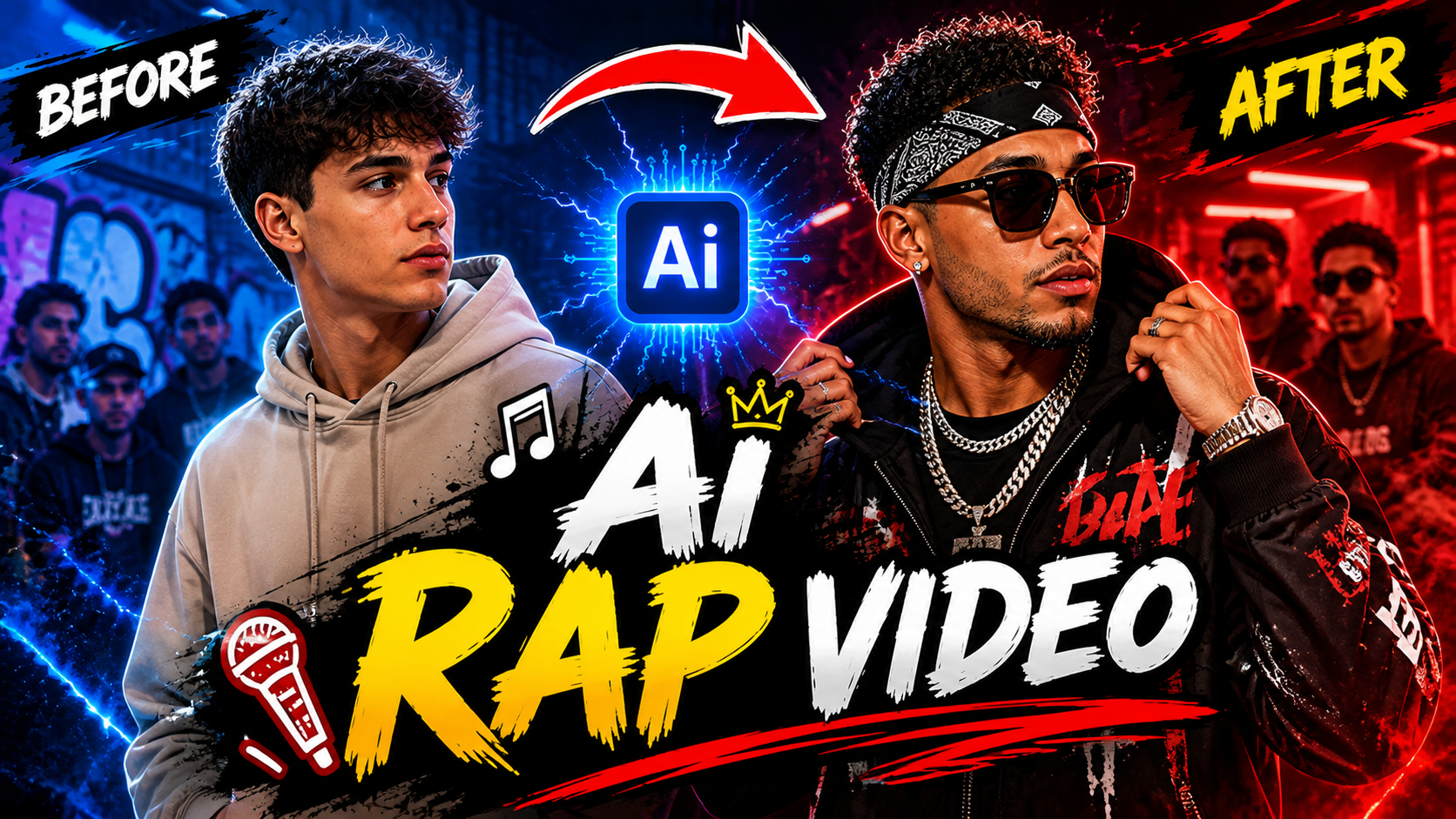
AI video editing is changing the way creators make music videos, short clips, and social media content. One exciting trend is the AI rap transition video, which combines rap-inspired visuals, AI-generated characters, cinematic effects, and smooth transitions to create eye-catching videos for TikTok, Instagram Reels, and YouTube Shorts.
With AI tools, you can transform an ordinary portrait into a stylish rap character, change outfits, switch backgrounds, create dramatic lighting, and animate different scenes without filming every shot yourself. You can also combine multiple AI-generated clips with music and beat-synchronized transitions to create a professional-looking result.
The best part is that you do not need advanced video editing skills to get started. With a clear idea, suitable AI prompts, and a simple editing workflow, you can create your own AI rap transition video using a smartphone or computer.
In this guide, you will learn how to create AI rap transition videos step by step, which prompts to use, how to make smooth scene changes, and how to prepare your final video for social media.
What Is an AI Rap Transition Video?
An AI rap transition video is a short video that combines AI-generated or AI-animated scenes with transitions inspired by rap and hip-hop music videos.
A transition is an effect or editing technique that connects one scene to another. Instead of showing a simple cut between two clips, creators can use a flash, camera zoom, outfit change, transformation, or movement to make the change more interesting.
For example, your video could begin with an ordinary portrait and transition into a fictional rapper wearing stylish streetwear. The next scene might change the background to a neon city, followed by a cinematic close-up or a dramatic performance shot.
Popular transition ideas include:
- Normal photo to AI rapper transformation
- Casual outfit to streetwear transformation
- Daytime scene to nighttime scene
- Ordinary portrait to cinematic music-video character
- Realistic image to animated character
- Background changes synchronized with music
- Fast zoom transitions between different scenes
- Multiple looks featuring the same fictional character
The goal is to create a visually engaging video in which every scene change feels connected to the rhythm and mood of the music.
Why Are AI Rap Transition Videos Popular?
Short-form video platforms are ideal for visual transformations because viewers can understand the concept quickly. Rap-inspired edits also provide opportunities to experiment with fashion, lighting, camera angles, and energetic music.
AI tools make this process more accessible by helping creators generate characters, environments, and animated clips.
Some reasons creators experiment with this style include:
Creative transformations: You can turn a simple portrait into a cinematic character or change the character’s entire visual setting.
Less filming: AI-generated scenes can reduce the need for physical locations, costumes, and recording equipment.
Multiple visual styles: You can experiment with streetwear, futuristic cities, retro music videos, and concert-inspired environments.
Short-form storytelling: Several quick transitions can communicate a complete visual idea within a short video.
Remember that no particular editing technique guarantees viral success. Originality, pacing, audience interest, and the quality of the finished video all matter.
What You Need to Create an AI Rap Transition Video
Before starting, prepare the basic elements of your project.
1. A Reference Photo or AI Character
Use a clear photo that you own or have permission to use. Alternatively, create an original fictional character with an AI image generator.
2. An AI Image Generator
An image generator can help create your character’s outfits, environments, poses, and different visual styles.
3. An AI Video Generator
An AI video tool can animate still images, add camera movements, and generate short clips for your transitions.
4. A Video Editing App
Use a video editor to combine clips, synchronize cuts with music, add effects, and export the final video.
5. Music or Audio
Choose original, licensed, or platform-authorized music that matches the mood of your edit.
Step 1: Choose Your AI Rap Transition Concept
First, decide what transformation your video will show.
A simple concept makes it easier to create consistent images and plan the transitions.
Here are some ideas:
Streetwear transformation: Begin with a casual portrait and transition into a cinematic rap-inspired outfit.
Luxury music-video style: Change a simple scene into an elegant, dramatic environment.
Neon city transition: Transform a normal background into a futuristic nighttime street.
Retro hip-hop transition: Switch from a modern look to a vintage-inspired music-video aesthetic.
AI character transformation: Start with an ordinary fictional character and turn it into a stylized animated performer.
For your first video, choose one main transformation and two or three supporting scenes. This is easier to manage than creating a large number of unrelated effects.
Step 2: Create Your Main AI Rap Character
Your character should look recognizable throughout the video. Consistent clothing, hairstyle, facial features, and accessories help connect separate scenes.
If you are creating a fictional character, use an image prompt like this:
You can customize the clothing and background to suit your idea.
Generate a few variations and select the image with the clearest face and strongest composition. Save it as your main reference image if your AI tool supports reference-image input.
Step 3: Generate the Transformation Images
Now create the images you want to connect with transitions.
For example, your first image might show the character in a simple outfit, while the second shows the same character in a cinematic rap-inspired look.
Use consistent descriptions in each prompt.
If you want multiple backgrounds, generate separate images of the same character in each environment.
Keep the main character description unchanged while adjusting only the elements you want to transform.
Step 4: Animate the Images With AI
Once your images are ready, use an AI video generator to animate them.
Start with simple movement, such as a slow camera push-in, a slight turn, or a confident walk. These movements can create a natural bridge between scenes.
Generate short clips rather than trying to produce the entire finished video in one generation. Short clips are easier to arrange, trim, and replace when the animation contains unwanted distortions.
Step 5: Choose Your Rap Transition Effect
Transitions are the central feature of this type of video. Choose an effect that suits the music and the images.
Flash Transition
A brief flash connects two scenes. It works well for an outfit transformation or a change from a normal portrait to a cinematic character.
Zoom Transition
The camera appears to move quickly toward the subject before revealing the next scene. This works well with energetic music.
Motion Blur Transition
A fast movement creates a blur that hides the cut between two clips.
Outfit Transformation
The character changes clothing between scenes. To make the result look smooth, align the subject’s position and body angle in both images as closely as possible.
Background Transition
Keep the character in a similar position while changing the environment from a studio to a city street or concert-inspired setting.
Glitch Transition
A brief digital distortion creates a futuristic or electronic look. Use it sparingly so the video remains easy to watch.
Step 6: Write an AI Rap Transition Prompt
If your AI video tool supports transition or multi-scene generation, describe the beginning, transformation, and ending clearly. The exact result will depend on the AI tool. If it cannot reliably generate the entire transformation in one clip, generate the opening and ending separately and create the transition in your editor.
Step 7: Synchronize Transitions With the Music
Music synchronization can make an AI rap transition video feel more polished.
Instead of placing transitions randomly, align them with noticeable beats or changes in the audio.
For example:
- Opening beat: show the original portrait.
- First strong beat: reveal the new outfit.
- Next beat: switch to a nighttime background.
- Musical accent: add a zoom or flash transition.
- Final beat: end on a strong close-up or dramatic pose.
Listen to the track before editing and identify the moments where a transition would feel natural.
Avoid adding a transition to every single beat. Mixing quick cuts with longer shots can make the video easier to follow.
Step 8: Edit the Video in a Mobile Editor
After generating your clips, import them into your preferred video editing application.
Follow this workflow:
- Create a new vertical project.
- Import your AI-generated clips.
- Place them in the intended sequence.
- Trim unnecessary beginning and ending frames.
- Add your chosen music.
- Align the transitions with the rhythm.
- Apply flash, zoom, blur, or glitch effects where appropriate.
- Adjust brightness and contrast for consistency.
- Add captions or a short title if needed.
- Preview the video before exporting.
Do not use too many effects at once. The transformation should remain the main focus of the video.
Step 9: Create a Cinematic Rap Look
Color and lighting help separate an ordinary AI animation from a polished music-video edit.
Depending on the concept, you can experiment with:
- Dark backgrounds
- High-contrast lighting
- Neon highlights
- Warm cinematic tones
- Cool nighttime colors
- Subtle film grain
- Controlled motion blur
- Light reflections
Try to maintain a consistent color style across all scenes. If one clip is very bright and another is extremely dark, the transition may feel accidental rather than intentional.
Prompt:
Replace the bald guy singing with the person uploaded
Step 10: Use the Correct Video Format
For TikTok, Instagram Reels, and YouTube Shorts, vertical video is generally a practical choice.
Recommended starting settings:
- Aspect ratio: 9:16
- Resolution: 1080 × 1920
- Orientation: Vertical
Keep the main character near the center of the frame, while leaving enough room for natural movement and on-screen captions.
Before exporting, check that the face, outfit, and important visual details are not cropped.
Step 11: Avoid Common AI Transition Problems
AI-generated clips can contain visual inconsistencies, especially when the character changes pose or clothing.
Changing faces: Reuse a reference image and repeat the character description.
Different clothing: Specify the desired outfit clearly in every relevant prompt.
Jerky transitions: Align the subject’s position and movement in the clips before adding effects.
Distorted hands or limbs: Use simpler poses and select clips with fewer visible artifacts.
Unnatural motion: Generate shorter clips with one clear movement.
Inconsistent lighting: Use similar lighting descriptions or adjust the clips during editing.
A useful tip is to generate several versions of an important scene and select the cleanest result rather than trying to fix every problem with editing effects.
Final Thoughts
Creating an AI rap transition video combines AI image generation, animation, creative prompting, and music-based editing. You can begin with a simple portrait, create a cinematic character, animate several short scenes, and connect them using transitions that match the rhythm of your chosen track.
For the best results, plan your transformation before generating images. Keep the character consistent, use simple movements, and choose effects that support the visual story instead of distracting from it.
For More Click Here