AI-generated car videos are becoming a popular way to create cinematic social media content without filming an actual vehicle. One of the most eye-catching formats is the AI car entry video, where a person appears to walk toward a stylish car, opens the door, enters the vehicle, and the scene finishes with a dramatic camera movement.
The best part is that you can create this type of video from a single image using modern AI image-to-video tools. CapCut, for example, supports image-to-video workflows in which an image becomes the starting point for an AI-generated video draft that can then be refined with captions, timing, audio, and other edits.
In this guide, you will learn how to create an AI car entry video step by step, how to prepare your image, write an effective AI prompt, create realistic movement, edit the final video, and make it suitable for TikTok, Instagram Reels, YouTube Shorts, and other platforms.
What Is an AI Car Entry Video?
An AI car entry video is a short video created with artificial intelligence in which a person appears to approach and enter a car.
A typical sequence can look like this:
- The person stands beside the car.
- The camera slowly moves toward the subject.
- The person walks toward the driver’s door.
- The car door opens.
- The person gets inside.
- The door closes.
- The camera moves around the car.
- The video finishes with a cinematic shot.
Instead of recording every action with a real camera, you can start with an image and use an AI video generator to create movement.
This makes the technique particularly useful for creators who want cinematic car content but don’t have access to expensive cameras, locations, lighting equipment, or vehicles.
Why AI Car Entry Videos Are Trending
Car content has always performed well on short-form video platforms because vehicles naturally provide strong visual elements.
AI makes this type of content even easier to experiment with.
You can create:
- Luxury car entry videos
- Sports car entry videos
- Supercar videos
- Night car entry videos
- Cinematic SUV videos
- Futuristic car videos
- Rainy car entry scenes
- Neon city car videos
- Vintage car entry videos
- Action-style car scenes
The key is to create a clear visual story rather than asking AI to perform too many complicated actions in a single generation.
AI video tools work better when the image has a clear subject and the requested movement is easy to understand. CapCut’s own guidance recommends describing the source image, desired movement, camera behavior, and what should remain fixed.
What You Need to Create an AI Car Entry Video
You don’t need professional video equipment.
You can create the basic effect with:
- A smartphone or computer
- One suitable photo
- An AI image-to-video generator
- A video editing application
- Background music
- Optional sound effects
For example, CapCut provides an image-to-video AI workflow that can transform still images into video and then allow further editing.
Canva also provides an image-to-video feature that can animate a still image using a custom motion prompt.
For this tutorial, we’ll focus mainly on the image-to-video workflow, because it gives you more control over the appearance of the person and car.
Step 1: Choose the Right Photo
The first and most important step is choosing a good starting image.
Your photo should clearly show:
- The person
- The car
- The car door
- The surrounding environment
- Enough space for movement
Avoid images where the person’s body is cut off or the car door is hidden.
For example, a good composition could show a person standing beside a luxury car with the driver’s door clearly visible.
Recommended composition
Try to use an image similar to:
Person + car + visible door + cinematic background
The AI needs enough visual information to understand where the person is positioned and where the movement should happen.
CapCut’s image-to-video guidance similarly recommends using an image with a clear subject, appropriate framing, and enough visual information for the requested movement.
Step 2: Create or Prepare Your AI Image
You can use an existing photograph if you have permission to use it, or create a fictional AI image first.
For example, your image prompt could be:
A stylish young man wearing a black luxury outfit standing beside a modern black sports car, cinematic urban parking garage, dramatic lighting, realistic photography, low camera angle, premium automotive commercial style, detailed environment, vertical composition.
You can change the subject, clothing, vehicle type, location, and lighting.
Some ideas
Luxury style:
A stylish man standing beside a black luxury sedan outside a modern hotel at night, cinematic lighting, realistic photography.
Sports car style:
A young man standing next to a red sports car on a city street at sunset, dramatic cinematic lighting, realistic automotive photography.
Night style:
A person standing beside a black supercar in a neon-lit city at night, wet road reflections, cinematic atmosphere, realistic photography.
The goal is to create an image where the car door and person are clearly visible.
Step 3: Write an AI Car Entry Prompt
The prompt is one of the most important parts of the process.
Don’t simply write:
Make a car entry video.
That’s too vague.
Instead, describe the subject, action, camera movement, environment, and style.
A stronger prompt could be:
A stylish man slowly walks toward the driver’s door of the black sports car, opens the door naturally, sits inside the vehicle, and closes the door. The car remains stationary. Cinematic camera movement, realistic human motion, smooth body movement, subtle camera push-in, natural lighting, realistic shadows, premium automotive commercial style.
This gives the AI a sequence to follow.
Step 4: Use a Simple Motion Sequence
One common mistake is trying to create an entire movie in one AI generation.
For example, don’t ask the AI to make the person:
- Walk toward the car
- Open the door
- Enter the car
- Start the engine
- Drive away
- Drift around a corner
all in one clip.
That can create unwanted movement and visual inconsistencies.
Instead, divide the story into smaller clips.
Clip 1
Person standing beside the car.
Clip 2
Person walking toward the driver’s door.
Clip 3
Person opening the door.
Clip 4
Person sitting inside.
Clip 5
Door closing and cinematic car shot.
You can combine these clips later in your video editor.
This approach gives you more control over the final result.
Step 5: Generate the AI Video in CapCut
Open CapCut and look for its AI video or image-to-video workflow.
CapCut’s current desktop AI workflow provides an Image to video option where you can upload a reference image, select settings such as duration and aspect ratio, and generate the video.
The general process is:
- Open CapCut.
- Enter the AI video generation area.
- Select Image to Video.
- Upload your prepared car image.
- Enter your motion prompt.
- Select the desired video settings.
- Generate the clip.
- Review the result.
- Regenerate or modify the prompt if necessary.
Don’t expect the first generation to always be perfect.
AI video creation is often an iterative process.
Step 6: Use the Right AI Motion Prompt
Here’s a ready-to-use prompt for a basic AI car entry video:
A stylish person slowly walks toward the driver’s side of a luxury black sports car. The person naturally reaches for the door handle, opens the driver’s door, and smoothly sits inside the car. Realistic human movement, natural body proportions, realistic hands, cinematic camera push-in, subtle motion blur, dramatic lighting, realistic shadows, premium automotive commercial style, smooth movement, stable car, highly realistic video.
For a night version:
A stylish person walks toward a black sports car parked on a wet city street at night. Neon lights reflect on the vehicle and road. The person naturally opens the driver’s door, gets inside, and closes the door. Cinematic camera movement, realistic human motion, dramatic reflections, soft depth of field, realistic lighting, premium car commercial style.
Step 7: Make the Camera Movement Cinematic
Camera movement can dramatically improve your AI car entry video.
You can experiment with:
Slow Push-In
The camera gradually moves closer to the person and vehicle.
Low-Angle Shot
The camera stays near the ground and makes the car look more dramatic.
Side Tracking
The camera moves sideways while following the person.
Rear Camera Movement
The camera follows the subject from behind as they approach the car.
Orbit Shot
The camera slowly moves around the vehicle.
For beginners, a slow push-in is one of the easiest choices because it doesn’t require complicated movement.
Step 8: Keep the Car Stable
One of the biggest problems with AI-generated car videos is unwanted changes to the vehicle.
The car may suddenly:
- Change shape
- Change wheels
- Change color
- Gain or lose details
- Distort the windows
- Change headlights
- Move unexpectedly
To reduce these problems, include instructions such as:
Keep the car design, color, wheels, body shape, and background consistent throughout the shot.
Also avoid asking for extreme camera movement during the same clip.
CapCut’s guidance recommends specifying what should remain fixed when creating an image-to-video prompt.
Step 9: Create Multiple Clips
Instead of generating one long sequence, create several short clips.
For example:
Scene 1 — Introduction
The person stands beside the car.
Prompt:
Cinematic slow camera push toward the person standing beside the luxury car, subtle movement, realistic lighting, car remains completely stationary.
Scene 2 — Walking
The person slowly walks toward the driver’s door, natural walking motion, realistic body movement, camera follows smoothly from the side.
Scene 3 — Opening the Door
The person reaches toward the driver’s door handle and naturally opens the door, realistic hand movement, stable car, cinematic close-up.
Scene 4 — Entering
The person smoothly sits inside the driver’s seat, realistic body movement, natural motion, stable camera.
Scene 5 — Final Shot
The car remains parked as the camera slowly moves around the front of the vehicle, cinematic automotive commercial shot, dramatic lighting.
You can then place these clips together in CapCut.
Step 10: Edit the AI Car Entry Video
After generating your clips, open the normal CapCut editor.
Import all your AI-generated clips and arrange them in the correct order.
A simple timeline could be:
Standing → Walking → Door Opens → Entering → Door Closes → Hero Car Shot
Trim unnecessary frames from each clip.
The goal is to make the video feel fast and intentional.
CapCut specifically describes the AI generation result as a first draft that can then be refined with pacing, captions, overlays, audio, and export settings.
Step 11: Add Cinematic Music
Music can make a huge difference.
For a luxury car video, try:
- Cinematic bass
- Dark electronic music
- Luxury lifestyle music
- Slow trap beats
- Automotive commercial music
- Dramatic instrumental music
Match important actions to the beat.
For example:
Beat → Door opens
Beat → Person enters
Beat → Door closes
Beat drop → Hero shot of car
This can make a simple AI-generated sequence feel much more polished.
Step 12: Add Car Sound Effects
Music isn’t enough.
Consider adding subtle:
- Door opening sound
- Door closing sound
- Footstep sound
- Engine start
- Seat movement
- Ambient city noise
- Tire or road sound
Keep sound effects relatively subtle so they don’t overpower the music.
If your AI video doesn’t naturally contain convincing audio, adding your own sound layer during editing can improve the final presentation.
Step 13: Add Text
You can add a short text overlay to make the video more suitable for social media.
Examples:
“POV: Your Dream Car Is Waiting”
“The AI Car Entry”
“Luxury Looks Different”
“POV: You Finally Bought Your Dream Car”
Keep the text short.
Large paragraphs aren’t suitable for short-form videos.
Step 14: Choose the Correct Aspect Ratio
If you’re creating content for TikTok, Instagram Reels, or YouTube Shorts, use a vertical format.
A common choice is:
9:16
This fills the smartphone screen and gives the subject enough vertical space.
For YouTube videos and traditional landscape content, use:
16:9
Canva’s AI video generator, for example, supports video generation workflows with specific output settings, while its image-to-video tools are designed to turn still images into short animated clips.
Best AI Car Entry Prompt
Here is a complete prompt you can copy and modify:
Create a realistic cinematic car entry video. A stylish person wearing a modern black outfit slowly walks toward the driver’s side of a premium black sports car parked in a modern city environment. The person naturally reaches for the door handle, opens the driver’s door, smoothly sits inside the vehicle, and closes the door. Keep the car’s color, body shape, wheels, windows, and environment consistent throughout the video. Realistic human proportions, natural walking motion, realistic hand movement, smooth camera tracking, cinematic lighting, realistic reflections, subtle motion blur, shallow depth of field, premium automotive commercial style, highly realistic footage.
Common AI Car Video Problems
1. Distorted Hands
AI can sometimes create unrealistic hands when the person interacts with the car door.
Try simplifying the action.
Instead of:
Quickly open the door and jump inside.
Use:
Slowly reach toward the door handle and naturally open the driver’s door.
2. Changing Car Design
If the vehicle changes between frames, strengthen your prompt:
Keep the exact same car design, color, wheels, headlights, windows, and body shape throughout the entire clip.
3. Strange Walking
If the walking animation looks unnatural, reduce movement.
Use:
Slow, natural walking movement with realistic human body mechanics.
4. Camera Shaking
Use:
Smooth stabilized cinematic camera movement.
Avoid combining multiple complicated camera movements.
Prompt:
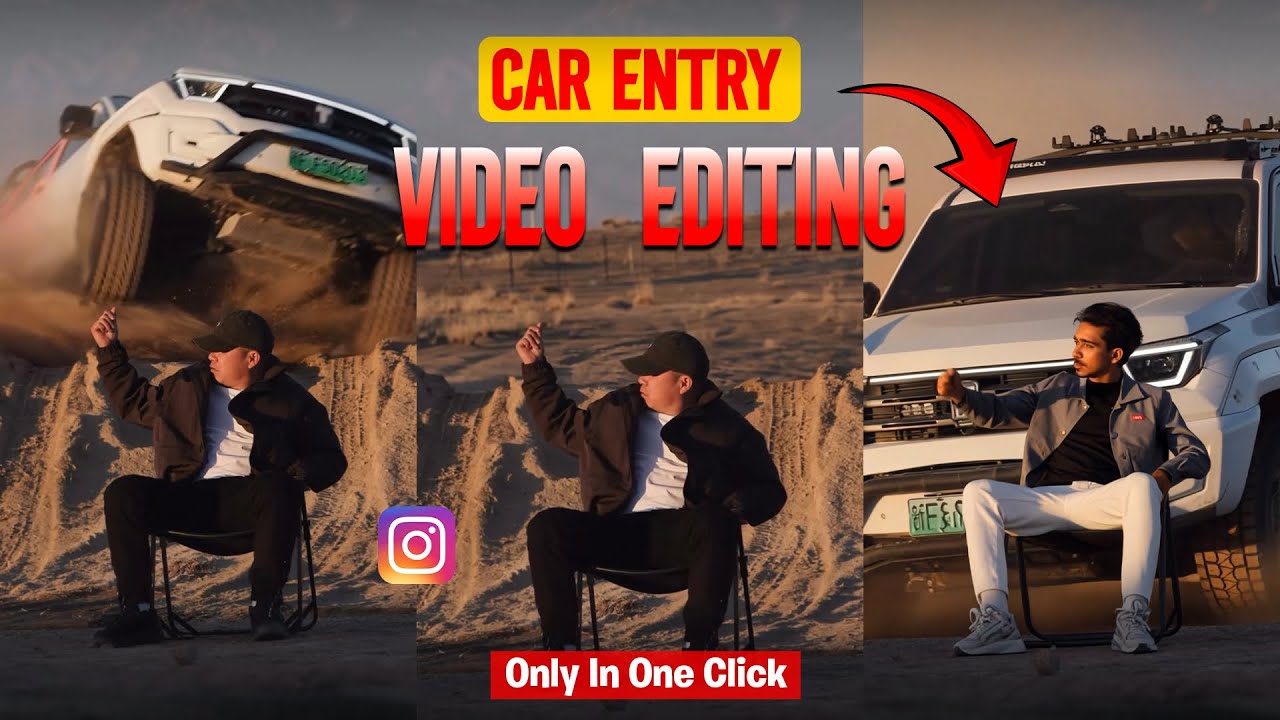
The person from the reference image is sitting calmly on a black folding chair in the middle of a dry, open field with dusty uneven ground. Preserve his exact face, identity, hairstyle, skin tone, body proportions and overall appearance from the reference image. He wears an all-black outfit and black sunglasses. He sits confidently with one leg crossed over the other, looking toward the camera. 0–3 seconds: The person is already seated and remains calm and still. Keep his pose, position, chair and appearance consistent. 3–6 seconds: A WHITE luxury SUV suddenly approaches from behind him at high speed, kicking up natural dust. 6–8 seconds: The SUV hits the uneven ground and jumps into the air, moving toward the camera at an impressive cinematic angle. Make the jump physically realistic with believable vehicle weight, suspension and tire movement. 8–9 seconds: The SUV lands naturally with visible suspension compression and realistic dust reacting to the impact. 9–11 seconds: The SUV continues past the seated person while dust spreads naturally across the ground. The person remains completely calm and seated in the same position. Keep the uploaded reference image as the primary identity reference for the person throughout the entire video. Photorealistic professional-camera footage, natural sunlight, realistic shadows, realistic dust particles, cinematic depth of field, subtle motion blur, realistic physics, detailed 4K quality. Keep the camera perspective, composition, environment and person’s position consistent throughout. No identity drift, no face changes, no body deformation, no pose changes, no extra people, no duplicate person, no changing clothes, no changing chair, no floating vehicle, no unrealistic physics, no scene changes, no text, no watermark, no CGI or cartoon appearance
5. Too Much Movement
AI often produces better results when you describe one primary action.
For example:
Person walks toward the car.
is easier to control than:
Person walks, opens the door, enters, starts the engine, drives away, and performs a drift.
Can You Create AI Car Entry Videos From One Photo?
Yes.
The image-to-video workflow is specifically designed to animate still images. CapCut describes its image-to-video system as a way to start from a still image and generate a first video draft that can subsequently be edited.
Canva also explains that its Image to Video tool can animate a still image with either automatic animation or a custom prompt.
This means you don’t necessarily need an original video recording.
A good image can be the starting point for the entire concept.
Tips for Making Your AI Car Entry Video More Realistic
Follow these tips:
Use a high-quality source image
The better your starting image, the easier it is to create a convincing animation.
Keep actions simple
One major movement per clip is easier to control.
Describe camera movement
Tell the AI whether the camera should push in, track, orbit, or remain stationary.
Describe what stays fixed
Mention the car color, background, clothing, and important objects that shouldn’t change.
Generate multiple versions
Don’t stop after the first result.
Generate alternatives and choose the version with the most natural motion.
Edit after generation
AI generation should be treated as part of the workflow rather than the entire editing process. CapCut recommends refining the generated draft with timing, captions, overlays, audio, and other final edits.
AI Car Entry Video Ideas
Once you understand the basic workflow, you can create many variations.
Luxury Car Entry
A person enters a luxury sedan outside a five-star hotel.
Supercar Entry
A person walks toward a supercar in a modern underground garage.
Rainy Car Entry
A person enters a sports car while rain falls around the vehicle.
Neon Car Entry
A futuristic vehicle waits on a neon-lit street.
Sunset Car Entry
A person enters a sports car during golden hour.
Black-and-White Car Entry
Create a classic monochrome automotive commercial.
Futuristic Car Entry
Use futuristic lighting, modern architecture, and an advanced-looking vehicle.
Final Thoughts
Creating an AI car entry video is much easier when you treat the project as a combination of image generation, AI animation, and traditional video editing.
Start with a strong image that clearly shows the person, car, and driver’s door. Then use an image-to-video AI tool such as CapCut to generate a short movement sequence. Write a specific prompt that explains the person’s action, camera movement, lighting, and details that should remain consistent. CapCut’s current workflow supports this image-to-video generation followed by further editing and polishing.
For the most reliable results, don’t try to create an entire cinematic sequence in one generation. Create several short clips—approach, door opening, entering, door closing, and final car shot—and combine them in your editor.
For More Click Here