AI-generated car videos are becoming increasingly popular on TikTok, Instagram Reels, YouTube Shorts, and other social media platforms. One of the most eye-catching trends is the AI car drift video, where artificial intelligence is used to create cinematic scenes of cars drifting around corners, racing through roads, or performing controlled-looking maneuvers in fictional environments.
The great thing about AI video generation is that you don’t need an expensive sports car or a professional camera crew to create this type of content. With a suitable AI video generator, a reference image, and a detailed prompt, you can turn a simple car photo into an exciting cinematic video.
In this guide, you’ll learn how to make AI car drift videos, how to create effective prompts, how to use your own car images, how to add realistic motion and camera effects, and how to edit the final video for social media.
Safety note: The techniques in this article are intended for creating fictional or AI-generated visual content. Real-world drifting should only be performed by trained drivers in controlled, legal environments designed for motorsport.
What Are AI Car Drift Videos?
AI car drift videos are computer-generated or AI-enhanced videos that depict a vehicle moving through a cinematic scene with drifting-style motion.
Instead of recording a real car performing a maneuver, AI can generate a fictional sequence based on a text prompt or reference image.
A typical AI car drift video may include:
- Sports cars
- Modified vehicles
- Race tracks
- Mountain roads
- City streets
- Smoke effects
- Motion blur
- Dramatic camera angles
- Wet-road reflections
- Tire movement
- Cinematic lighting
- Slow-motion shots
These elements can be combined to create a visually impressive short video.
Why Are AI Car Drift Videos Trending?
Cars have always performed well as visual content on social media because they naturally provide strong shapes, colors, movement, and cinematic possibilities.
AI adds another layer of creativity.
You can create scenes that would otherwise require:
- Expensive cars
- Professional cameras
- Specialized locations
- Large production crews
- Advanced visual-effects software
AI allows creators to experiment with these concepts using digital tools.
For example, you can start with a picture of a car and generate a scene where the same vehicle appears on a fictional race track surrounded by smoke and dramatic lighting.
What You Need to Make an AI Car Drift Video
The basic workflow is simple.
You need:
A Car Image
This can be your own vehicle, a properly licensed image, or an AI-generated car image.
An AI Video Generator
Use a tool that supports image-to-video or text-to-video generation.
A Video Editor
An editor can help you combine clips, add sound, transitions, text, and additional effects.
A Good Prompt
Your prompt describes the vehicle, environment, camera angle, movement, lighting, and visual style.
Step 1: Choose Your Car
Start by deciding which vehicle you want in your video.
You could use:
- A sports car
- A classic car
- A supercar
- A modified sedan
- A rally-inspired vehicle
- An electric performance car
- A fictional vehicle
If you want to transform a real car photo, choose an image where the entire vehicle is visible.
A side-angle or three-quarter view is often useful because it gives the AI more information about the vehicle’s shape.
Step 2: Prepare Your Reference Image
If your AI video tool supports image-to-video generation, upload your car image.
For better results:
- Use a high-resolution image.
- Make sure the car is clearly visible.
- Avoid heavily blurred photographs.
- Keep the vehicle unobstructed.
- Use consistent lighting when possible.
- Avoid excessive filters.
A clean reference image gives the AI a stronger starting point.
Step 3: Choose the Environment
The environment can completely change the atmosphere of your video.
Some popular ideas include:
Mountain Road
Create a cinematic scene on a fictional closed mountain road with dramatic scenery.
Race Track
A professional motorsport circuit is ideal for a racing-inspired video.
Industrial Area
A fictional industrial environment can create a dark, cinematic atmosphere.
Rainy Road
Wet pavement creates attractive reflections and dramatic lighting.
Desert Road
A desert environment can provide a wide cinematic landscape.
Neon City
A fictional nighttime city with colorful lights can create a futuristic car-video aesthetic.
When creating fictional scenes, describe the location clearly in your prompt.
Step 4: Write Your AI Car Drift Prompt
A good prompt should describe more than just the car.
Include:
- Vehicle type
- Vehicle color
- Environment
- Camera angle
- Motion
- Lighting
- Weather
- Smoke
- Visual style
- Video quality
For example:
Create a cinematic fictional car-action video featuring a metallic sports car performing a controlled drift on a closed professional race track. Show the vehicle moving around a wide corner with tire smoke, realistic body movement, dramatic track lighting, detailed reflections, dynamic camera tracking, subtle motion blur and high-quality cinematic photography. Keep the car’s design consistent throughout the shot.
This gives the AI a much clearer visual direction.
Best AI Car Drift Video Prompt
Try this detailed prompt:
Create an ultra-realistic cinematic video of a high-performance sports car performing a controlled drift on a closed race circuit. The camera follows the vehicle from a low three-quarter angle as it moves through a wide corner. Add realistic tire smoke, subtle motion blur, detailed reflections on the bodywork, dramatic evening lighting, realistic shadows and a professional motorsport atmosphere. Keep the vehicle’s shape, wheels, paint color and design consistent throughout the sequence. Use smooth camera movement and realistic physics.
AI Drift Video Prompt for a Night Scene
For a nighttime style, try:
Create a cinematic fictional car-action sequence at night on a closed race track. A sleek sports car performs a controlled drift around a wide corner while illuminated by track lights. Add subtle tire smoke, wet pavement reflections, realistic headlights, dramatic shadows, smooth tracking-camera movement and cinematic motion blur. Maintain consistent vehicle proportions and details throughout the video.
AI Drift Video Prompt With Rain
Rain can create a visually impressive scene:
Create a realistic cinematic video of a performance car driving through a closed race circuit during light rain. The vehicle moves around a controlled corner with subtle tire spray and smoke, wet pavement reflections, dramatic lighting, realistic water droplets and smooth tracking-camera movement. Keep the car’s appearance consistent and realistic throughout the scene.
Step 5: Generate Short Clips
Don’t try to generate a long video in one attempt.
Instead, create several short clips.
For example:
Clip 1: Car approaching the corner
Clip 2: Car entering the turn
Clip 3: Side tracking shot
Clip 4: Rear camera angle
Clip 5: Slow-motion close-up
Clip 6: Final exit shot
You can combine the strongest clips later in your video editor.
This approach gives you more creative control.
Step 6: Experiment With Camera Angles
Camera movement can make an AI car video much more cinematic.
Try:
Low Front Angle
The camera stays close to the ground while the car approaches.
Side Tracking Shot
The camera moves alongside the vehicle.
Rear Follow Shot
The camera follows the vehicle from behind.
Wide Establishing Shot
Show the entire fictional environment.
Close-Up
Focus on the wheels, headlights, or bodywork.
Avoid requesting complicated camera movement and complicated vehicle movement simultaneously if the AI struggles with consistency.
Step 7: Add Smoke Carefully
Smoke can make a drift-style scene visually recognizable.
However, too much smoke can hide the vehicle.
Ask for:
subtle realistic tire smoke
rather than:
huge clouds of smoke covering the entire car.
Keeping the smoke controlled allows viewers to see the vehicle clearly.
Step 8: Improve Motion Realism
AI-generated motion can sometimes look unnatural.
To improve it, use terms such as:
- Smooth movement
- Realistic vehicle motion
- Natural camera tracking
- Consistent wheel rotation
- Realistic shadows
- Physically plausible movement
- Stable vehicle proportions
You can also ask the AI to maintain consistent vehicle details throughout the clip.
Common AI Problems With Car Videos
AI video generation isn’t perfect.
You may encounter:
- Changing wheels
- Distorted body panels
- Incorrect reflections
- Flickering headlights
- Inconsistent backgrounds
- Strange tire movement
- Changing car proportions
- Unnatural smoke
- Camera instability
If this happens, simplify your prompt.
Instead of describing ten different effects, focus on the car, environment, and primary movement first.
How to Keep the Car Consistent
Vehicle consistency is particularly important.
Use the same reference image whenever possible.
In your prompt, specify:
If your AI tool offers reference-image strength, character/object consistency, or similar controls, use them according to the tool’s instructions.
Video Prompt:
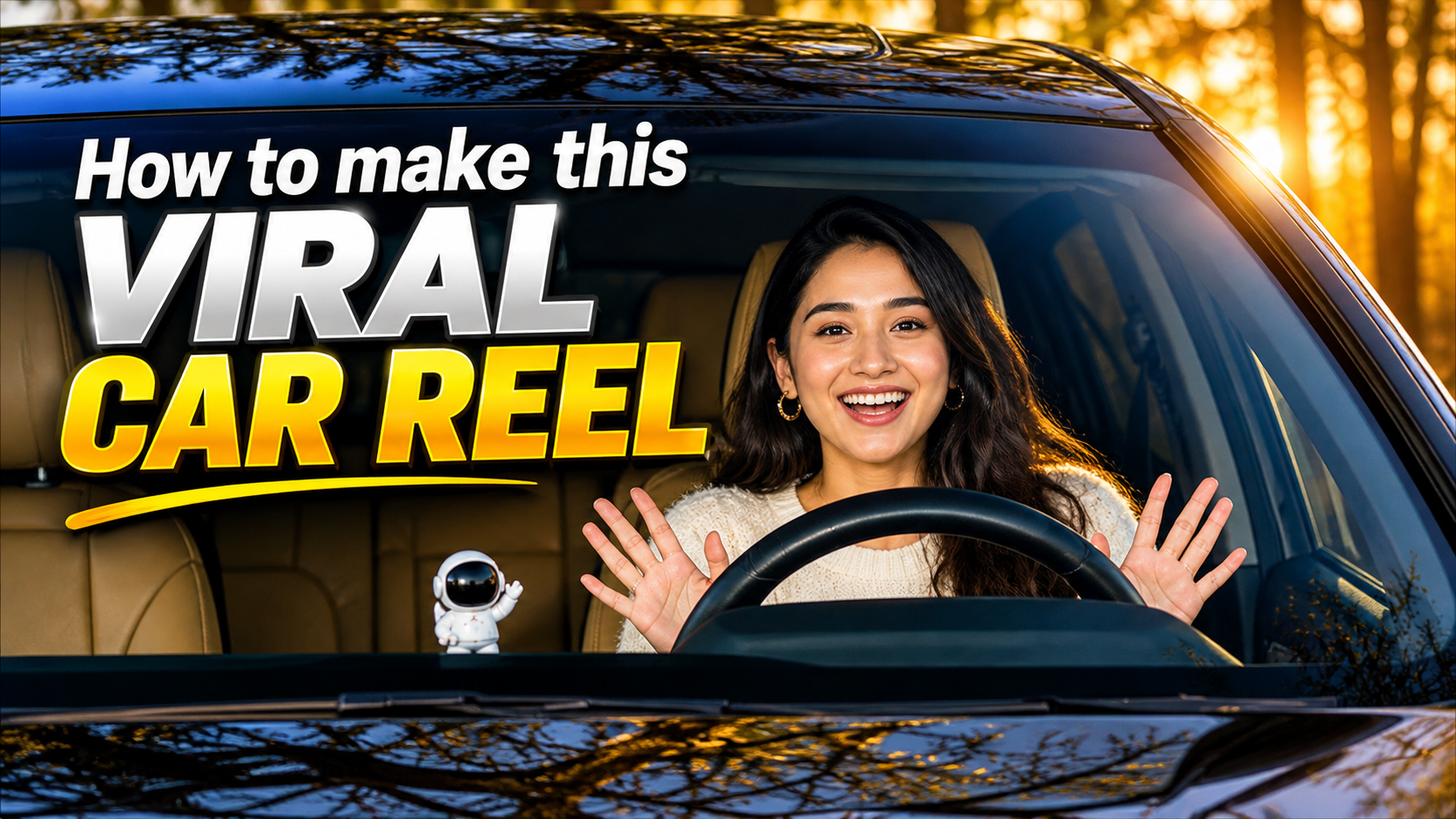
Replace the driver in the reference video with the person from my uploaded reference image. The uploaded person should naturally occupy exactly the same position and posture as the original driver. Keep everything else exactly unchanged: the same car, interior, steering wheel, road, location, background, lighting, camera angle, camera movement, driving motion, timing, reflections, shadows, and overall visual style. The new person must realistically interact with the steering wheel and controls, with natural hand placement, body movement, head movement, facial expressions, and driving posture matching the original driver’s movements frame by frame. Preserve the original person’s actions and timing, but transfer those movements naturally to the replacement person. Do not change the car or environment. Do not add or remove any objects. Maintain realistic skin texture, facial identity, clothing, proportions, perspective, reflections, and natural motion. The result should look like the uploaded person was actually sitting inside the car and driving during the original recording. Photorealistic, seamless face and body replacement, consistent identity throughout the entire video, no flickering, no morphing, no distortion.
How to Edit Your AI Car Drift Video
After generating your clips, open them in a video editor.
Arrange the footage in a logical sequence.
A simple structure could be:
Opening
Show the car from a wide angle.
Build-Up
Show it approaching the corner.
Main Action
Use the strongest cinematic shot.
Detail Shot
Show the wheels, headlights, or side of the car.
Ending
Finish with the car leaving the scene.
This structure creates a mini story rather than a collection of unrelated AI clips.
Add Sound Effects
Sound can make a major difference.
Consider adding:
- Engine sounds
- Tire sounds
- Road ambience
- Wind
- Camera whooshes
- Cinematic impacts
If you’re publishing the video, use audio you have permission to use.
Don’t assume that every sound or music track available online is free for commercial use.
Add Music
For social media videos, choose music that matches the atmosphere.
For example:
Night scene: electronic or cinematic music
Retro car: synthwave-inspired music
Race track: energetic instrumental music
Luxury car: cinematic background music
Always check the platform and music license before using a track in monetized content.
How to Make AI Car Videos for TikTok
TikTok is ideal for short automotive AI videos.
A simple structure is:
0–2 seconds: Show the car.
2–5 seconds: Build anticipation.
5–10 seconds: Show the main action.
10–15 seconds: Finish with a cinematic shot.
You can also create a transformation concept:
Normal Car Photo → AI Race Scene
This immediately communicates the AI transformation.
How to Make AI Car Videos for Instagram Reels
For Instagram, focus on:
- Vertical composition
- High-quality visuals
- Short clips
- Strong opening
- Smooth transitions
- Clear subject
- Appropriate audio
Try combining several camera angles to make the video feel like a professionally produced car edit.
Final Thoughts
Learning how to make AI car drift videos can open up many creative possibilities for automotive content creators. You don’t need access to a race track or an expensive performance vehicle to experiment with cinematic car visuals.
Start with a clear vehicle image, choose a fictional or controlled environment, and write a detailed prompt describing the car, movement, camera angle, lighting, and atmosphere. Generate several short clips rather than relying on a single long generation, then combine your favorite shots in a video editor.
For the most convincing results, focus on consistency. The car should maintain the same body shape, color, wheels, and proportions throughout the sequence. Keep visual effects such as smoke and motion blur subtle enough that the vehicle remains visible.
You can then add suitable sound effects, licensed music, transitions, and text to turn your AI-generated clips into polished content for TikTok, Instagram Reels, YouTube Shorts, or your own website.
Most importantly, remember that AI car videos are a creative visual medium. Use them to tell a story, demonstrate an idea, or create fictional automotive scenes rather than attempting dangerous driving activities in the real world.
With experimentation and better prompting, you can create increasingly impressive AI car drift videos while keeping the workflow simple and accessible.
For More Click